PDF Too Large to Send by Email? Here's the Solution
PDF Too Large to Send by Email? Here's the Solution
It's one of the most frustrating moments in modern work life.
You've spent hours putting together a document. A report. A proposal. A portfolio. Something important. You go to email it to your client, your boss, or your colleague, and your email service throws up a red flag: "File too large."
Suddenly, the document you needed to send today is stuck on your computer, and you've got no idea how to fix it.
The worst part? You don't have time to troubleshoot. You just need to send the file. Now.
Here's the thing though: this problem has real solutions. Multiple solutions. And most of them take less than two minutes. You don't need to re-do the document. You don't need to call IT. You don't need to pay for anything.
This guide walks you through exactly what to do when your PDF is too large to email, starting with the fastest fixes and moving to backup options.
Why Is Your PDF Too Large in the First Place?
Understanding the problem helps you prevent it next time.
PDF files get oversized for predictable reasons:
High-resolution images embedded in the document — This is the number one culprit by far. If your PDF contains photos, charts, graphics, or screenshots saved at full resolution, those add massive file size. A single high-quality photo can be 2–5MB. Multiply that by a few pages and you've got a 20MB file instantly.
Scanned documents — If you scanned pages to create your PDF, those scans are essentially uncompressed images. A single scanned page can easily be 5–10MB depending on the resolution you used. A 10-page scanned document could be 50–100MB.
Embedded fonts and metadata — PDFs sometimes include entire font libraries and hidden data that you never see. This adds unnecessary bulk.
Multiple versions or layers — Design software sometimes saves extra information in the PDF that isn't needed for the final output.
Video or multimedia content — If your PDF has embedded video or audio files, that's going to bloat the size significantly.
Most of the time, it's the images. Get those under control and your file size drops dramatically.
How Large Is "Too Large"?
Email providers have attachment size limits, and you need to know what yours are:
- Gmail: 25MB maximum
- Outlook/Office 365: 20MB maximum
- Yahoo Mail: 25MB maximum
- Corporate email systems: Often 10–15MB maximum
So technically, Gmail and Yahoo let you send files up to 25MB. But here's the reality: just because you can send it doesn't mean you should.
A 20MB file takes time to upload. It takes time for the recipient to download. It might trigger spam filters. It's annoying for everyone involved.
The sweet spot? Try to keep your PDFs under 5MB. That's small enough to email instantly on any connection, and it doesn't feel like a burden to your recipient.
Solution 1: Compress the PDF (Works 80% of the Time)
This is the fastest fix and it works for most people most of the time.
When you compress a PDF, you're optimizing the images and removing unnecessary data. The content stays the same. The quality stays mostly the same (depending on compression level). But the file size drops dramatically—often by 50–70%.
How to do it with an online tool:
- Go to an online PDF compressor like ZestPDF (zestpdf.com)
- Upload your oversized PDF by dragging it onto the page or clicking to browse
- Click "Compress"
- Download your smaller file
That's it. The whole process takes about 20 seconds. Your file gets smaller, and you can email it.
Why this works:
- Instant results
- No software to install
- Works on any device
- Free
- Usually reduces file size by 40–80%
Why it might not be enough:
- If your PDF is already 50MB+, compression might only get it down to 15–20MB (still too large)
- Aggressive compression can degrade image quality slightly
- Doesn't work on all file types (though it works on most)
When to use this first: If your PDF is only moderately oversized (15–30MB), compression usually solves it completely. It's the fastest solution with zero hassle.
Solution 2: Remove Images Entirely
Sometimes your recipient doesn't need the images anyway. They need the information, not the visuals.
If that's the case, removing images is the most aggressive (and most effective) way to shrink your file.
How to do it:
Using an online PDF editor:
- Upload your PDF
- Use the editing tools to select and delete images
- Download the text-only version
You'll lose the visual elements, but your file size drops to maybe 200KB–1MB depending on how much text there is.
Why this works:
- Extremely effective
- Results in a very small file
- Quick process
Why you might not want to do it:
- If the images are important to understanding the document, removing them defeats the purpose
- Visual content (portfolios, design work, charts) loses its value
When to use this: Your PDF is a report or document where images are decorative, not essential. Or you're sending a text-heavy proposal and the images aren't critical.
Solution 3: Split the PDF Into Multiple Files
Instead of trying to shrink one massive PDF, break it into pieces.
If your PDF is 40 pages, maybe you only need to email the first 20. Or you split it into two 20-page PDFs and send both.
How to do it:
- Use an online PDF splitter like ZestPDF
- Upload your large PDF
- Select which pages you want to extract
- Download the smaller file(s)
- Send multiple emails if needed
Why this works:
- Solves the size problem by dividing the content
- Lets you send only relevant sections to specific people
- Takes about 30 seconds
Why it might not work:
- Requires the recipient to accept multiple files
- Doesn't help if every page is critical
When to use this: Your PDF is very long (50+ pages) and different sections go to different people, or the recipient only needs certain chapters.
Solution 4: Use an Alternative Delivery Method
Sometimes the problem isn't the file—it's the delivery method. Email just isn't ideal for large files.
File-sharing services:
- Upload your PDF to Google Drive, Dropbox, OneDrive, or similar
- Share a link with your recipient
- No size limit
- Actually more convenient for the recipient (they don't have to download to see it)
Why this works:
- No email size limits
- Recipient can view in browser
- Easier to share with multiple people
- Professional appearance
Why it might not work:
- Takes a few extra steps
- Your recipient needs to have/create an account with the service (though most people do)
- Some companies restrict access to cloud services
When to use this: You need to send a genuinely large file (50MB+) or you're sending to multiple people. File-sharing is actually better than email in these cases anyway.
Solution 5: Re-Export the PDF With Lower Quality
If you created the PDF yourself from a source document (Word, PowerPoint, design software), you can re-export it with lower image quality settings.
In Microsoft Word:
- Open your document
- Go to File → Options → Advanced
- Scroll down to "Image Size and Quality"
- Check "Discard editing data"
- Choose "Print (220 ppi)" or "Web (150 ppi)" instead of default
- Save and export as PDF
In Adobe Design Software:
- Go to File → Export
- Choose PDF format
- Set image quality to "Web" or "Screen"
- Export
This reduces file size significantly while keeping the document readable on screen.
Why this works:
- You control the quality/size tradeoff
- Results are predictable
- Takes about 2 minutes
Why it might not be possible:
- Only works if you created the PDF yourself
- Requires the original software
- Doesn't work if someone else gave you the PDF
The Fastest Solution: Just Compress It
Honestly, 80% of the time, if your PDF is too large to email, compression solves it.
Here's the reality:
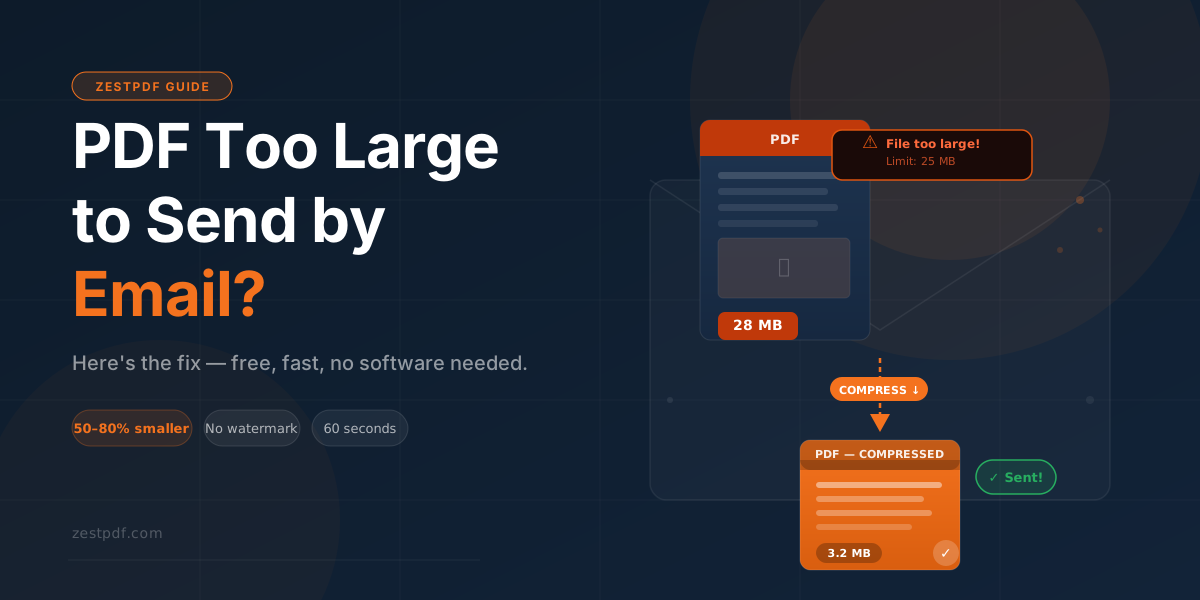
- A 28MB PDF usually compresses down to 4–6MB (now it's email-safe)
- A 50MB PDF usually compresses down to 10–15MB (might still be too large, so you'd need a second solution)
- A 100MB+ PDF usually needs file-splitting or alternative delivery
For most people, one quick pass through a PDF compressor fixes the problem completely.
It takes 20 seconds. It's free. It works.
Why waste time exploring other solutions when compression solves it so fast?
How to Compress Your PDF Using ZestPDF
If you want a straightforward, dedicated solution, ZestPDF's compressor is built for exactly this problem.
Here's how it works:
Step 1 — Go to zestpdf.com and click "Compress PDF"
Step 2 — Drag your oversized PDF onto the upload area (or click to browse your computer)
Step 3 — Click "Compress"
Step 4 — Download your smaller file
The entire process takes about 20 seconds. Your file is processed in your browser and automatically deleted—nothing sits on ZestPDF's servers.
You'll typically see compression of 40–80% depending on what's inside your PDF. That usually brings an email-blocking file down to a sendable size.
Best part? Completely free. No account needed. No watermarks. No software to install.
What to Do If Compression Isn't Enough
If you compress your PDF and it's still too large, here's your escalation plan:
First, try a more aggressive compression. Some online tools have different compression levels. Try the maximum setting.
Second, remove non-essential images. Use an online PDF editor to delete photos or graphics that aren't critical to the message.
Third, split the PDF. Extract the first half and the second half into separate files. Send as two emails.
Fourth, use file-sharing instead of email. Upload to Google Drive or Dropbox and send a link. No size limit, and it's actually easier for your recipient.
Fifth, contact the document creator and ask if they can provide a compressed version or a version without images.
One of these will solve your problem.
Tips for Avoiding This Problem in the Future
Optimize images before you embed them. If you're creating a PDF from scratch, compress your images first (in Photoshop, Preview, or any image editor) before you add them to your document. Start small and you won't have to shrink later.
Use "save for web" export settings. In any software, look for export options labeled "web" or "screen quality." These are designed to be small.
Set appropriate DPI. When exporting to PDF, use 72–150 DPI for screen viewing, not 300 DPI (which is for printing). This alone makes a massive difference.
Turn off editing data. In Word, PowerPoint, or design software, disable the option to save editing data in your exported PDF. You don't need it.
Avoid embedding fonts unnecessarily. Only embed fonts if they're unusual. Standard fonts (Arial, Times New Roman, etc.) exist on every computer.
Don't add video or audio. If your PDF has multimedia, that's why it's huge. Save the video separately and send a link instead.
Frequently Asked Questions
Q: How much will compression reduce my file size? A: Typically 40–80% depending on content. A 20MB file might become 4–6MB. A 10MB file might become 2–3MB.
Q: Will compression hurt the quality? A: For screen viewing, compression is basically unnoticeable. For printing, there might be slight quality loss depending on compression level.
Q: What if my PDF is still too large after compression? A: Try a more aggressive compression setting, remove images, or split the file into multiple PDFs.
Q: Is it safe to upload my PDF to a compression tool? A: Reputable tools like ZestPDF delete your file immediately after processing. But if your PDF is highly confidential, use offline methods instead.
Q: Can I compress a PDF on my phone? A: Yes, using an online tool through your mobile browser. No app needed.
Q: What's the best way to send a very large PDF (100MB+)? A: Use file-sharing like Google Drive, Dropbox, or OneDrive. Email has size limits for a reason.
Q: Why do some PDFs compress more than others? A: PDFs with lots of high-resolution images compress dramatically. Text-heavy PDFs don't compress as much because there's less to optimize.
Q: Can I compress a PDF multiple times? A: Technically yes, but don't. Each compression degrades quality slightly. Compress once, get it right, and stop.
Q: Will the recipient be able to open a compressed PDF? A: Yes, absolutely. A compressed PDF is still just a regular PDF file.
Q: How long does compression take? A: Usually 10–30 seconds depending on file size and internet speed.
Common Mistakes People Make
Not checking the result before sending — Always download and open your compressed PDF. Make sure it still looks good and has everything you need. Takes 30 seconds and saves you from sending a broken file.
Trying to email an unsendable file — If your PDF is 50MB+, email isn't the right tool. Use file-sharing instead.
Over-compressing and degrading quality — If you use the most aggressive compression settings, image quality can suffer. Use standard compression first, and only go aggressive if needed.
Forgetting to rename the file — When you download a compressed PDF, it might have a generic name. Rename it before sending so your recipient knows what it is.
Not updating your habits — If you keep creating oversized PDFs, you'll keep having this problem. Change how you create PDFs to prevent it next time.
Final Takeaway
A PDF that's too large to email is annoying, but it's also completely solvable in under two minutes. Most of the time, compression fixes it. Sometimes you need an alternative solution like file-sharing or splitting.
The key is knowing your options so you can pick the right fix for your situation.
For most people in most situations: compress the PDF, send it, move on. It's that simple.