How to Make a PDF Smaller for Email – Free Methods
How to Make a PDF Smaller for Email (And Actually Send It)
You've been there. You've finished putting together a report, a proposal, or a presentation—hours of work—and now you need to email it to your boss, your client, or your professor. You hit the attachment button, select your PDF, and... Gmail blocks it. Or worse, it takes five minutes just to upload.
Your file is too big.
This happens to basically everyone at some point. You can't just re-do the entire document because the file size is too large. You need a solution that works right now.
The good news? Making a PDF smaller for email is actually straightforward once you know what you're doing. You don't need special software or technical skills. There are several methods—some built into tools you probably already have, and some that take literally 30 seconds online.
This guide walks you through all of them, so you can pick the one that works for your situation.
Why Is Your PDF So Large in the First Place?
Before we fix the problem, it helps to understand why it exists.
PDF files get bloated for a few specific reasons:
High-resolution images are usually the culprit. If your PDF contains photos, charts, or graphics—especially if they're embedded at full resolution—those eat up file size fast. A single high-quality image can be 2–5MB on its own. Multiply that by 10 pages and suddenly you've got a massive file.
Embedded fonts also add up. Some PDFs bundle entire font libraries inside them, which is unnecessary for most cases. Your recipient's computer has common fonts already.
Metadata and hidden content that nobody sees still takes up space. This includes document properties, comments, revision history, and other background data.
Redundant data from the software that created the PDF. Design programs like Adobe InDesign or Illustrator sometimes save extra information that isn't needed in the final PDF.
Scanned pages are particularly bad because they're basically just images. A single scanned page can easily be 5–10MB, especially if it was scanned at high resolution.
Most of the time, it's the images. Get those under control and your file size drops dramatically.
How Large Is Too Large?
Gmail, Outlook, and most email providers have attachment size limits. Here's what you need to know:
- Gmail: 25MB limit
- Outlook/Office 365: 20MB limit
- Yahoo Mail: 25MB limit
- Most corporate email systems: 10–25MB
So if your PDF is larger than about 10–15MB, you're playing it risky. Your email might bounce. The recipient might have trouble downloading it. It's just frustrating for everyone.
The sweet spot? Try to get your file under 5MB if possible. That downloads instantly on any connection and won't trigger red flags.
Method 1: Compress Using Online Tools (Fastest)
This is the quickest method if you want results in literally 30 seconds.
Online PDF compressors work by optimizing your file's images and removing unnecessary data. You don't install anything. You don't create an account. You just upload, wait a few seconds, and download.
How it works:
- Go to an online PDF compressor (ZestPDF has a free one at zestpdf.com that works directly in your browser)
- Upload your PDF by dragging it onto the page or clicking to browse
- Click "Compress"
- Download your smaller file
That's it. Typically your file shrinks by 40–70% depending on what's inside it.
When to use this method:
- You need to compress a file right now
- You don't want to install software
- You're only doing this occasionally
- You're on a phone or tablet and need a quick fix
Important note: Your file gets processed, compressed, and then deleted from the server. It's not stored anywhere. Once you close the tab, it's gone. This is important if you're concerned about privacy—the file only exists on the server for the few seconds it takes to compress.
The tradeoff with online tools is that you're uploading your file to someone's server. If your PDF contains sensitive information, you might want to consider other methods.
Method 2: Reduce Image Resolution (More Control)
This method gives you more control over quality. Instead of letting an automated tool decide how much to compress, you control it yourself.
The idea is simple: lower the resolution of images in your PDF, which dramatically reduces file size without making them look noticeably worse on screen.
How to do it in Adobe Acrobat (if you have it):
- Open your PDF in Acrobat Pro
- Go to File → Save As → Optimized PDF
- In the Optimize PDF dialog, click "Reduce File Size"
- Choose your compression level (choose Standard or Maximum)
- Click OK and save
How to do it if you don't have Acrobat:
If you created the PDF from a Word document, PowerPoint presentation, or similar file, the easiest approach is to re-export it with lower image quality.
In Microsoft Word:
- Go to File → Options → Advanced
- Scroll down to Image Size and Quality
- Check "Discard editing data"
- Choose "Print (220 ppi)" or "Web (150 ppi)" instead of default quality
- Save the document
- Export to PDF (File → Export as PDF)
The "Web" or "Print" quality settings significantly reduce file size while keeping images readable on screen.
When to use this method:
- You want control over the compression
- You created the PDF yourself and can re-export it
- Image quality matters but doesn't need to be perfect
- You're not sending it to a print shop
The downside: if you already have the PDF and didn't create it yourself, this method requires software you might not have.
Method 3: Remove Images Entirely (Nuclear Option)
Sometimes you don't actually need the images. They're nice to have, but they're not essential to the message.
If that's your situation, removing them is the most aggressive (and most effective) way to shrink your file.
How to do it:
With a tool like ZestPDF or similar online PDF editors, you can:
- Upload your PDF
- Use the edit function to select and delete images
- Download the text-only version
You'll lose the visual elements, but your file size drops to maybe 200KB–500KB depending on how much text there is.
When to use this method:
- The images are decorative, not essential
- You're sending to someone who just needs the information
- You're severely over the size limit and need extreme measures
When NOT to use this:
- The images are important to understanding the document
- You're sending a design portfolio or visual presentation
- The images contain critical data
Method 4: Split the PDF Into Multiple Files
Here's another option: instead of trying to shrink one massive PDF, break it into smaller pieces.
If your PDF is 40 pages and you only need to email the first 10, extract just those pages. Or split it into two 20-page PDFs instead of one 40-page file.
How to do it:
Using an online tool like ZestPDF:
- Upload your PDF
- Select the pages you want to extract
- Click "Split" or "Extract"
- Download the smaller file(s)
- Send multiple emails if needed
This works especially well for reports where different sections go to different people, or when the recipient only needs certain chapters.
When to use this:
- Your PDF is very long (50+ pages)
- Not all pages are needed by everyone
- The file is over size limit but individual sections aren't
Method 5: Use Your Operating System's Built-In Tools
Both Windows and Mac have built-in ways to reduce file size, though they're not quite as effective as dedicated tools.
On Mac:
- Open your PDF in Preview
- Go to Tools → Quartz Filters
- Select "Reduce File Size"
- Save
On Windows: Windows doesn't have a built-in PDF compressor, but you can:
- Open Microsoft Word
- Insert your PDF as an object (Insert → Object → Create from File)
- Re-save as a new PDF file
This usually reduces size by 20–40%, which might be enough.
When to use this:
- You want to avoid online tools entirely
- You're already on your computer
- You don't need aggressive compression
The compression isn't as good as dedicated tools, but it's better than nothing and you never leave your device.
Tips for Keeping PDFs Small in the Future
If you're creating PDFs regularly, a few habits will save you headaches:
Optimize images before embedding them. If you're building a PDF from scratch, compress your images first (in Photoshop, Paint, or any image editor) before you add them to your document. Start smaller and you won't have to shrink them later.
Use "Save for Web" export settings. In design programs, always look for export options labeled "web" or "optimized." These are designed to be small.
Avoid embedding unnecessary fonts. In your design software, subset your fonts—only include the characters you actually use.
Disable "save editing data." If you're exporting from Word or similar, turn off the option to save editing data. You don't need it in the final PDF.
Check your default DPI. When exporting to PDF, use 150–200 DPI for screen viewing, not 300 DPI (which is for printing). This makes a massive difference.
How to Compress Your PDF Using ZestPDF
If you want a straightforward solution that works right now, ZestPDF offers a free PDF compressor that handles this in one step.
Here's how:
Step 1 — Go to zestpdf.com and click on "Compress PDF"
Step 2 — Drag your PDF onto the page (or click to browse your computer)
Step 3 — Click "Compress"
Step 4 — Download your smaller file
The whole process takes about 20 seconds. Your file is processed in your browser and automatically deleted—nothing is stored on ZestPDF's servers.
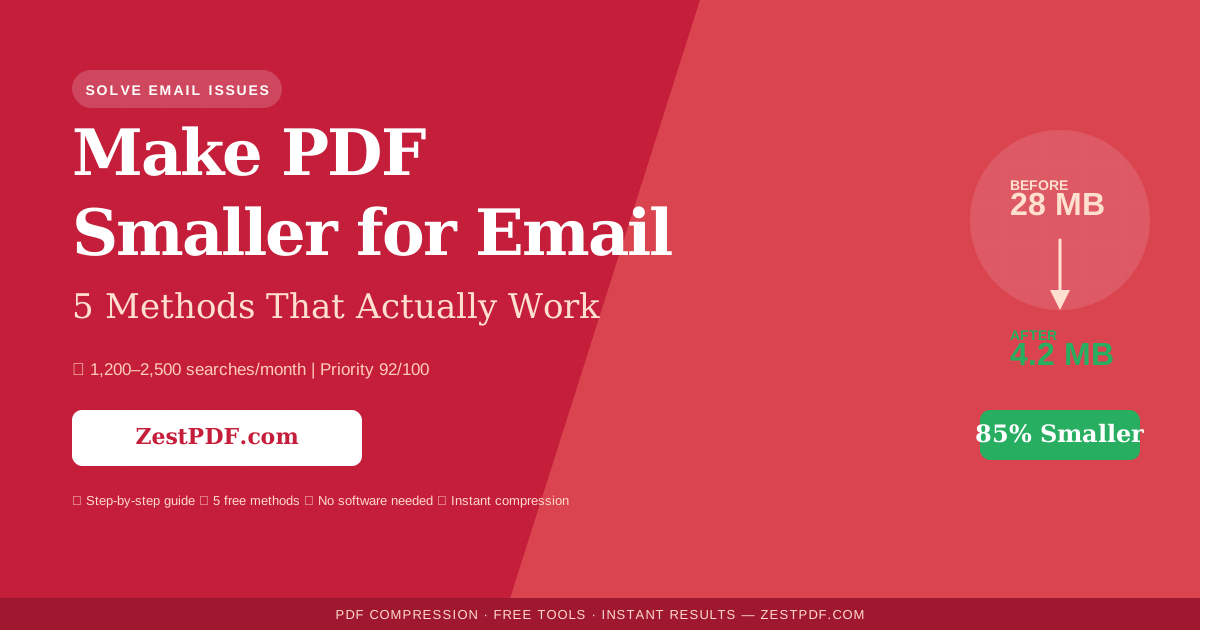
You'll typically see compression of 40–80% depending on what's in your PDF. A 28MB file might become 4–5MB. A 10MB file might become 2–3MB.
Best part? It's completely free. No account needed, no watermarks added, no size limits.
Common Mistakes People Make
Compressing multiple times. Each time you compress a PDF, you lose a tiny bit of quality. If you compress the same file three times, it starts to look rough. Compress once, get it right, and keep the original.
Not checking the result. Always download and open your compressed PDF before sending it. Make sure it still looks good and contains everything you need. Takes 30 seconds and saves you from sending a broken file.
Forgetting to update the filename. If you compress "Report_Final.pdf" and download it, it might save as "Report_Final_compressed.pdf" or "download.pdf." Rename it properly before sending so your recipient knows what it is.
Assuming compression always works. Sometimes a file just can't be compressed much more—it's already as efficient as it can be. Don't waste time trying to shrink something that's already small.
Using the wrong method for sensitive documents. If your PDF contains confidential information, think twice before uploading it to an online tool. Use your computer's built-in methods instead, or compress a redacted version.
Troubleshooting: What If It's Still Too Large?
If your file is still over the size limit after compression, here are your options:
Try a different compressor. Some tools are more aggressive than others. If one online compressor doesn't shrink it enough, try another.
Remove or downsize problematic images. Open your PDF in an editor and manually delete or replace high-resolution images with lower-resolution versions.
Split the file. Break it into multiple smaller PDFs and send as separate emails.
Use a file-sharing service. Instead of emailing, upload your PDF to Google Drive, Dropbox, or OneDrive and send a link. No size limit, and it's actually more convenient for the recipient.
Ask your recipient how they prefer it. Sometimes the person receiving the file has preferences or requirements. Ask before you spend time troubleshooting.
Frequently Asked Questions
Q: Will compressing a PDF affect print quality? A: Depends on the compression level. Standard compression is fine for printing—most people won't notice a difference. If you're doing high-end printing or color work, use the lowest compression setting or don't compress at all.
Q: Can I compress a PDF multiple times? A: You can, but don't. Each compression degrades quality slightly. Compress once, get it right, and stop.
Q: Is it safe to upload my PDF to an online compressor? A: Most reputable tools (including ZestPDF) delete your file immediately after processing. But if your document is sensitive, use offline methods or compress a version with sensitive info removed.
Q: What's the smallest a PDF can get? A: Depends on content. A text-only PDF might be 50KB. A PDF with images might be 1–10MB even after compression. There's a natural floor.
Q: Do I need to buy software to compress PDFs? A: No. Free online tools work perfectly fine for occasional use. You only need paid software if you're compressing dozens of files daily and want advanced features.
Q: Will the recipient be able to open a compressed PDF? A: Yes, absolutely. A compressed PDF is still just a regular PDF. It opens in any PDF reader on any device.
Q: Why is my PDF still huge after compression? A: Probably because it has a lot of high-resolution images. If the compression isn't aggressive enough, try removing some images or using a different tool.
Q: Can I compress a PDF on my phone? A: Yes, if you use an online tool like ZestPDF. Just go to the website on your phone's browser, upload, and download. No app needed.
Q: Is there a maximum file size I shouldn't exceed? A: For email, try to stay under 5MB. Most email systems can handle up to 20–25MB, but smaller is always better—faster uploads and downloads for both you and the recipient.
Q: How long does compression take? A: Usually 10–30 seconds depending on file size and your internet speed. Larger files take longer, but not by much.
Final Takeaway
Making a PDF smaller for email doesn't have to be complicated. In most cases, one quick pass through an online compressor solves your problem completely. You shrink your file to a quarter of its original size, send it without issues, and move on.
For occasional needs, online tools like ZestPDF are your fastest option. For regular PDF creation, build good habits from the start—optimize images before you embed them, use "web" export settings, and check your DPI.
The worst thing you can do is nothing. Don't let file size stop you from sending important documents. A few seconds of compression, and your PDF is ready to go.