How to Extract Specific Pages From a Large PDF File
Have you ever had a massive 200-page eBook, instruction manual, or financial report, but only needed to share two or three pages with a colleague?
Sending the entire, bulky document wastes storage space, slows down email deliveries, and requires the recipient to dig through pages of irrelevant information to find what they need.
The best solution is to split the document and extract only the relevant pages into a new, compact PDF. In this guide, we will show you how to extract specific pages from a large PDF file quickly, without losing image quality or document formatting.
Why Extract Pages from a PDF?
Splitting and extracting pages from large documents is useful in many situations:
- Sharing Specific Chapters: If you are using a textbook or reference manual, you can extract a single chapter for easy studying or sharing.
- Isolating Financial Records: When submitting taxes or business expenses, you can extract only the relevant receipt pages from a large bank statement.
- Protecting Sensitive Information: If a document contains confidential pages, you can extract only the non-sensitive pages to share with external parties.
- Creating Focused Handouts: Extract key slides or pages from a presentation to create clean, focused handouts for a meeting.
Key Methods for Extracting PDF Pages
There are several ways to extract pages from a PDF, depending on the tools you have:
Method 1: Using the "Print to PDF" Workaround
Most modern web browsers and office applications have a built-in printer driver called "Microsoft Print to PDF" or "Save as PDF". You can use this to extract pages:
- Open the PDF file in your web browser (Chrome, Edge, Safari).
- Click the Print icon or press
Ctrl + P(Cmd + Pon Mac). - Under Destination, select Save as PDF or Print to PDF.
- Under Pages, select Custom and enter the page numbers you want to extract (e.g.,
5-8, 12). - Click Save and choose a location on your computer.
Limitations: This method works for simple extractions but can strip away interactive elements like hyperlinks, bookmarks, and fillable form fields, converting them into a static print layout.
Method 2: Using a Dedicated PDF Extraction Tool
For a professional result, use a dedicated PDF tool. This preserves all hyperlinks, font subsets, vector graphics, and document structure.
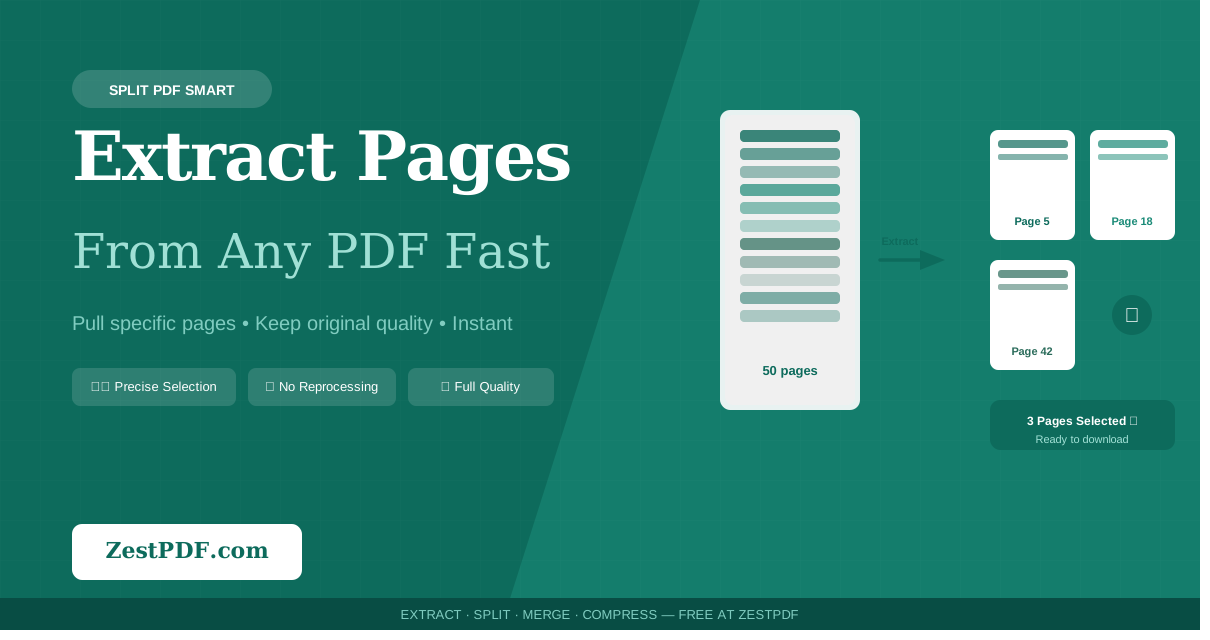
To protect your privacy, use a browser-based tool like ZestPDF. Our tool runs locally in your browser memory, ensuring your document is never uploaded to an external server.
Here is how to extract pages with ZestPDF:
- Open the Extract Pages page on ZestPDF.
- Drag and drop your large PDF file into the upload area.
- Once the document loads, you will see visual thumbnails of all pages.
- Click on the thumbnails of the pages you want to keep, or enter the page numbers in the input box (e.g.,
1-3, 15, 20-22). - Click Extract Pages to compile the new document in-memory.
- Download the resulting PDF file.
Best Practices for Splitting PDFs
To ensure your extracted documents look professional, keep these tips in mind:
- Check Link Integrity: If the extracted pages reference other pages in the original document via internal links, check if those links still work.
- Keep a Backup: Always keep your original, complete PDF file intact. Only perform extractions on copies to prevent accidental data loss.
- Compress the Output: If the extracted PDF is still too large (e.g., if it contains high-resolution images), run it through a Compress PDF tool before sharing.
Conclusion
Extracting specific pages from a large PDF is an easy way to clean up your files, save storage space, and share information more efficiently.
Use ZestPDF's suite of secure, local tools to split and extract pages from your documents quickly, without uploading your data. Try it today!