How to Edit a PDF Without Adobe Acrobat — Free & Online | ZestPDF
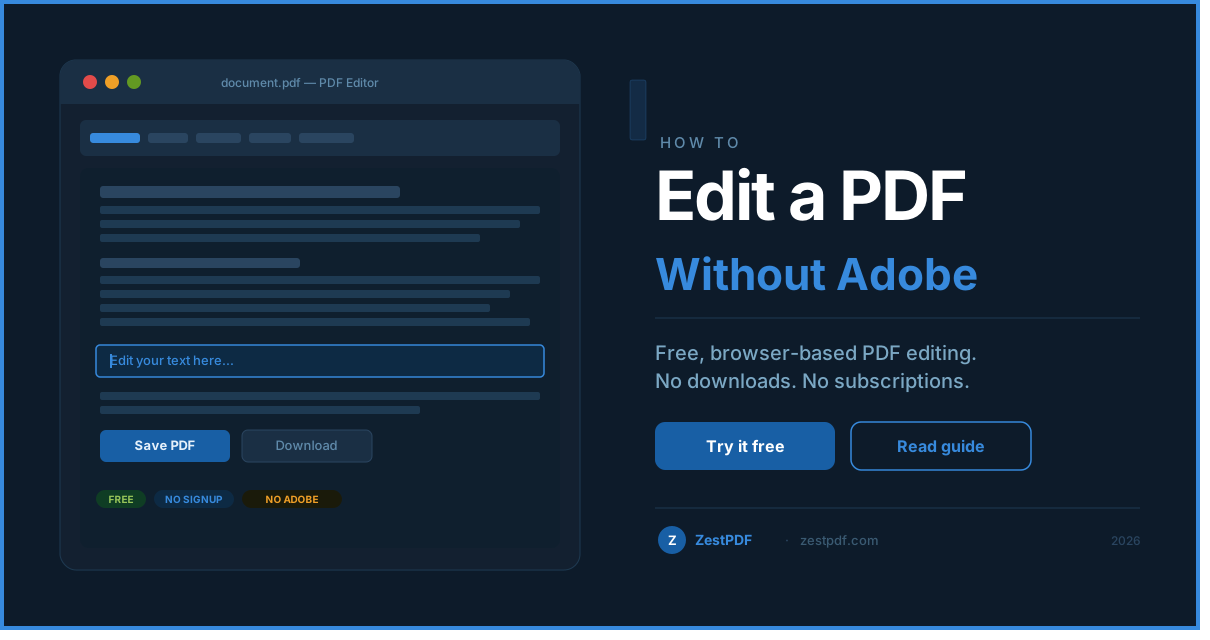
How to Edit a PDF Without Adobe Acrobat (Free & Online)
So you need to edit a PDF and you just realised you don't have Adobe Acrobat. Maybe your free trial expired. Maybe you never wanted to pay £18 a month just to fix a typo. Either way, you're stuck with a document you can't touch.
Here's the good news: you don't need Adobe to edit a PDF. Not even close. There are free, browser-based tools that let you edit PDF text, add images, fill in forms, and save your changes in under a minute — without downloading a single thing.
This guide walks you through exactly how to do it.
Why People Think They Need Adobe (And Why They Don't)
Adobe Acrobat built its reputation as the gold standard for PDF editing, and for a long time it was the only serious option. But that was before the browser became powerful enough to handle document processing entirely on its own.
Today, tools like ZestPDF use something called WebAssembly to run PDF editing directly in your browser tab. No server uploads. No software installs. No account required. The file never leaves your device, which also makes it significantly more private than most alternatives.
The only thing Adobe Acrobat still has over free tools is advanced features — like batch processing, redaction, and OCR for scanned documents. For everyday editing tasks? A free online editor does the job just as well.
What You Can Edit in a PDF Without Adobe
Before jumping in, it helps to know what "editing a PDF" actually covers, because people mean different things by it.
Most free PDF editors let you do the following without any issues. You can change existing text, fix typos, update dates or names, and adjust font sizes. You can add new text boxes anywhere on the page. You can insert images or logos into the document. You can fill in form fields — the ones with boxes waiting for your input. You can add your signature, either by typing it, drawing it, or uploading an image. You can annotate with highlights, underlines, and comments. You can delete pages or rearrange them.
What's harder without a paid tool is editing heavily formatted layouts where text flows across multiple columns, or working with scanned PDFs that are essentially images rather than real text. For those, you may need OCR (optical character recognition) to make the content editable first.
For everything else, a free tool will handle it perfectly.
How to Edit a PDF Without Adobe Acrobat, Step by Step
Here is the simplest way to do it, using ZestPDF's free online editor.
Step 1: Open the editor
Go to ZestPDF.com and click on Edit PDF. You don't need to create an account or sign up for anything. The tool opens immediately in your browser.
Step 2: Upload your PDF
Click the upload area and select your file, or just drag and drop it straight from your desktop. The file loads directly in your browser — it's never sent to an external server, so your document stays private.
Step 3: Make your edits
Once the file is open, you'll see the editing toolbar across the top. Click on any text in the document to select it and start typing. If you want to add a new text block, click the "Add text" option and click anywhere on the page. You can drag elements around, resize them, and change the font or colour using the options in the toolbar.
If you're filling in a form, click on the input fields directly and type your answers in.
Step 4: Save and download
When you're done, click the download button. Your edited PDF saves to your device immediately. The whole process takes under a minute for most documents.
That's it. No watermarks on the downloaded file, no forced sign-up, no size limits sneaking up on you.
Editing Different Types of PDF Content
Not all PDFs are the same, so here's a quick breakdown of how to handle the most common scenarios.
These are the easiest to work with. If you can select text with your cursor when you open the file, it's a text-based PDF. Click on the text you want to change, update it, and you're done.
Forms are also straightforward. Open the file in the editor and click on the blank fields. Most PDF forms have interactive fields that accept text input immediately. If the form fields aren't clickable, use the "Add text" tool to type over the blank areas instead.
Editing a scanned PDF
This is where things get a little trickier. Scanned PDFs are essentially photographs of a document — the "text" is just pixels in an image, not real characters a computer can edit. To fix this, you need OCR software to convert the image into real, editable text. ZestPDF's Convert tool can help with this, or you can use a dedicated OCR tool first and then edit the resulting file.
Adding content to any PDF
Even if you can't edit the existing text in a PDF, you can always add content on top of it. Use the text tool to place a new text box wherever you need it. This works for filling in unsigned form fields, adding a date, writing your name, or dropping in any information the document is missing.
Common Mistakes to Avoid
A few things trip people up when editing PDFs for the first time.
The biggest one is assuming you need to convert the PDF to Word first. You don't. Converting to Word often breaks the formatting and creates more work than it saves. Edit the PDF directly whenever you can.
Another common mistake is using a tool that uploads your file to a cloud server without telling you clearly. If you're editing a contract, a medical form, or anything sensitive, make sure you're using a browser-based tool that processes the file locally. ZestPDF does this — your file never leaves your device.
Some people also get caught out by tools that add a watermark to the finished file unless you pay. Always check the output before closing the tool so you're not surprised later.
When a Free Tool Isn't Enough
Free online PDF editors cover the vast majority of everyday editing tasks. But there are situations where you'll want to use something more powerful.
If you're working with scanned documents and need to extract and edit the actual text, a tool with built-in OCR is necessary. If you need to redact sensitive information permanently (not just cover it with a black rectangle), a proper redaction tool is required. If you're processing hundreds of files in a batch, a desktop app or API-based solution will save you time.
For anything outside those cases, a free browser-based editor is more than enough.
Why Browser-Based PDF Editing Is the Smarter Choice
Beyond the obvious benefit of being free, browser-based PDF editors have some real advantages over desktop software.
They work on any device — your Windows laptop, your MacBook, your iPad, even your phone. There's nothing to install, nothing to update, and no licence to renew every year. You just open a tab and get to work.
Because ZestPDF processes your file locally using WebAssembly, your documents stay on your device the whole time. For anyone handling personal, legal, or financial documents, that's a meaningful privacy advantage over tools that send your files to a server.
And of course, it's free. Not free with a watermark. Not free for five files a month. Just free.
Edit Your PDF Right Now
You don't need Adobe Acrobat. You don't need any software at all. Open ZestPDF's free PDF editor in your browser and you'll have your edited document downloaded in under a minute.
Whether you're fixing a contract, filling out a form, or updating a report, the tool handles it without any fuss. Give it a try at ZestPDF.com.