Convert Photos & Images to PDF Free — iPhone, Android & Desktop | ZestPDF
How to Convert Image to PDF Free Online — JPG, PNG, WEBP & More in Seconds
By ZestPDF Team | PDF Tips & Tricks | 7 min read
You've got an image. Maybe it's a photo of a signed document. Maybe it's a screenshot of something important. Maybe it's a scanned receipt, a product photo, a design mockup, or a collection of pictures you want to bundle into a single shareable file.
And you need it as a PDF.
Not because PDFs are complicated — actually the opposite. PDFs are universal. They look the same on every device, every screen, every operating system. They don't reformat. They don't shift around. When you send someone a PDF, what they see is exactly what you created. That's why converting images to PDF is one of the most searched things on the internet every single day.
The good news? You don't need software. You don't need a subscription. You don't need to upload your files to some mystery server in a country you've never heard of.
ZestPDF converts your images to PDF entirely in your browser — your files never leave your device. It's fast, free, and genuinely private.
Let's walk through everything.
What Formats Can You Convert to PDF?
This is usually the first question people have — and the answer at ZestPDF is broader than most tools offer.
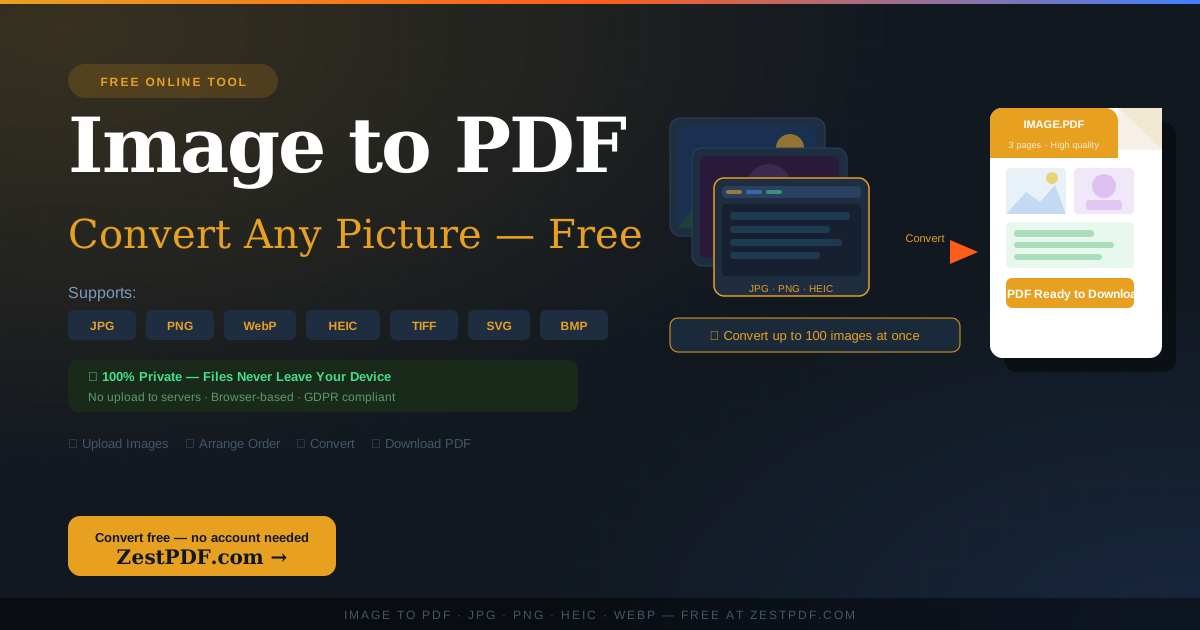
ZestPDF's Image to PDF converter supports:
- JPG / JPEG — The most common photo format. Camera shots, downloaded images, scanned documents saved as JPG — all supported.
- PNG — The go-to format for screenshots, graphics, logos, and images with transparent backgrounds. Converts cleanly with all detail preserved.
- WebP — Google's modern image format used across the web. Lots of tools don't support this yet. ZestPDF does.
- BMP — An older Windows format you still encounter with scanned documents and some legacy software outputs.
- TIFF / TIF — A high-quality format used heavily in professional scanning, medical imaging, and publishing workflows.
- SVG — Scalable vector graphics used by designers and developers. Converting SVG to PDF preserves the crisp, resolution-independent quality.
- HEIC / HEIF — The format iPhones use by default for photos. Many tools can't handle HEIC files — ZestPDF converts them without a fuss.
So whether you're coming from a smartphone, a scanner, a design tool, or a browser download — ZestPDF handles it.
How to Convert Image to PDF Free — Step by Step
The process at ZestPDF takes under a minute. Here's exactly what happens:
Step 1 — Open the Image to PDF tool Go to zestpdf.com/en/tools/image-to-pdf/ in any browser — Chrome, Safari, Firefox, Edge, whatever you use. No account to create. No popup asking for your email.
Step 2 — Upload your images Drag and drop your image files directly onto the upload area — or click to browse your device and select them. You can upload up to 100 images in one go. Mix different formats in the same batch if you need to — JPG and PNG together, HEIC and WebP, whatever combination you're working with.
Step 3 — Arrange the order If you're converting multiple images into a single PDF, this step matters. Drag your images into the exact sequence you want them to appear in the final document. First image becomes page one, second image becomes page two — simple.
Step 4 — Choose your page size and orientation Select the page dimensions for your PDF — A4, Letter, or other standard sizes — and whether you want portrait or landscape orientation. If you're converting a horizontal panorama photo, landscape makes more sense. If it's a document or portrait photo, portrait is the right call.
Step 5 — Convert and download Click Convert. ZestPDF processes everything locally in your browser — no waiting for a server to respond, no upload progress bar, no wondering what's happening to your files. Your PDF is generated and ready to download in seconds.
That's genuinely the whole process.
The Feature Nobody Else Talks About — Your Files Never Leave Your Device
Most image to PDF tools work the same way: you upload your file to their server, their server does the conversion, their server sends the PDF back to you, and then — hopefully — they delete your file.
You're trusting that the company handles your data responsibly. You're trusting that their server is secure. You're trusting that nobody is looking at your images. With some files that's fine. With others — photos of ID documents, medical scans, personal receipts, sensitive business materials — that trust starts to feel uncomfortable.
ZestPDF does something different.
The entire conversion happens inside your browser. Your images are never uploaded to any server. They never leave your device. ZestPDF uses browser-based processing technology so that everything — the conversion, the PDF generation, the whole operation — runs locally on your own machine.
This isn't marketing language. It's a genuine technical difference. ZestPDF is 100% private and GDPR compliant because there's nothing to be compliant about — your data stays with you.
For most everyday conversions it's a nice-to-have. For anything sensitive, it's a real reason to choose ZestPDF over every other tool that processes your files on a remote server.
When Would You Need to Convert an Image to PDF?
More often than you'd think. Here are the situations people run into every day:
Submitting documents online Job applications, visa applications, university admissions, rental applications — almost all of them ask for supporting documents as PDF files. If you've taken photos of your passport, degree certificate, or utility bill, you need to convert those images to PDF before you can submit them.
Turning phone photos into professional documents You signed a form by hand. You photographed it with your phone. Now it needs to be sent as a professional PDF, not a raw JPEG from your camera roll. Convert it to PDF first and it arrives looking clean and intentional.
Creating a photo album or portfolio PDF Designers, photographers, and creatives often need to send a portfolio or collection of work as a single PDF. Instead of sending 20 separate image files and hoping the recipient views them in the right order, convert them all to one PDF. Ordered, clean, professional.
Archiving and record keeping Receipts, invoices, correspondence photos, event pictures — storing them as PDFs rather than loose image files makes them easier to organise, search, and manage long-term. A PDF archive of your 2024 receipts is far easier to navigate than a folder of 80 JPEGs.
WhatsApp and email photos into submission-ready documents Banks, insurance companies, and government portals often won't accept image files — only PDFs. If you received a document as a photo over WhatsApp, or saved a screenshot of something you need to submit, converting it to PDF first means it gets accepted rather than rejected.
Combining multiple scanned pages into one document You scanned a multi-page contract one page at a time — now you have 12 separate JPEG files. Convert them all to one PDF with the pages in order and you have a proper document instead of a messy collection of images.
HEIC photos from iPhone iPhones save photos in HEIC format by default — a format that many platforms, older computers, and business applications don't support. Converting HEIC images to PDF is one of the cleanest ways to make your iPhone photos universally shareable without worrying about format compatibility.
Converting Multiple Images Into One PDF vs Separate PDFs
ZestPDF gives you control over this. When you upload multiple images, you can combine them all into a single PDF with multiple pages — or you can convert each image into its own separate PDF file.
Use a single combined PDF when:
- You're submitting a multi-page document (scanned contract, multi-page form)
- You're creating a portfolio or photo album
- You want to send multiple related images as one attachment
Use separate PDFs when:
- Each image is a standalone document (separate receipts, individual certificates)
- You need to submit files one at a time to a portal
- You're creating individual records for an archive
The flexibility to choose makes a real difference for professional workflows where one approach doesn't fit every situation.
Does Converting to PDF Affect Image Quality?
Short answer: no — not with ZestPDF.
Your images are embedded in the PDF at their original resolution and quality. If your JPEG was sharp and clear before conversion, your PDF page will be sharp and clear after conversion. ZestPDF doesn't apply any compression or quality reduction to your images unless you specifically choose to compress the output.
This matters for things like certificates, ID document photos, and design work — where pixelation or quality loss would make the document look unprofessional or potentially unusable.
If you do need a smaller file size after conversion — for emailing or uploading to a portal with size limits — you can run the resulting PDF through ZestPDF's free PDF compressor separately. That way you control the quality-versus-size tradeoff deliberately rather than having it happen automatically.
Using Image to PDF on Your Phone
The ZestPDF Image to PDF tool works perfectly on iPhone and Android. No app to download — just open zestpdf.com/en/tools/image-to-pdf/ in your mobile browser.
On a phone you can select images directly from your camera roll, your files app, or cloud storage like Google Drive or iCloud. For iPhone users especially, this is the smoothest way to convert HEIC photos from your camera to PDF without needing a desktop or any additional software.
The layout adjusts automatically to mobile screens and the process is identical — upload, arrange, convert, download.
Tips for Getting the Best Results
A few small things that make a real difference in the final PDF:
Shoot documents flat and straight If you're photographing a physical document to convert it to PDF, lay it on a flat surface with good even lighting. Angled photos, shadows across the page, and curved edges from holding the document all make the resulting PDF harder to read.
Use PNG for graphics and logos, JPG for photos PNG preserves sharp edges and solid colours better — ideal for graphics, screenshots, and logos. JPG is better suited to photographic images. If you're converting a mix, ZestPDF handles both formats together without any issues.
Check the page orientation before converting If your images are landscape (wider than tall), select landscape orientation before converting. A landscape image on a portrait page will either be shrunk down or cropped — neither is ideal.
Name your file before you download When you download your converted PDF, rename it something descriptive before saving. "Passport_Scan.pdf" or "Portfolio_2025.pdf" is far more useful than "download.pdf" when you're searching for it later.
Compress after converting if needed If your images are high-resolution and the resulting PDF is large, run it through the ZestPDF Compress PDF tool after converting. You can bring the file size down significantly without visible quality loss — especially useful before emailing or uploading to portals with file size limits.
Other Free PDF Tools at ZestPDF
Image to PDF is one tool in a complete free toolkit. While you're here:
- Compress PDF — Reduce oversized PDF files before sharing
- Merge PDF — Combine multiple PDF documents into one
- Split PDF — Extract specific pages from a large PDF
- Sign PDF — Add a legally valid e-signature to any PDF
- Watermark PDF — Mark documents as CONFIDENTIAL, DRAFT, or branded
- PDF to Word — Convert PDFs into editable Word documents
- Word to PDF — Turn .docx files into clean, shareable PDFs
- PDF to JPG — Export PDF pages back as image files
- Rotate PDF — Fix sideways or upside-down pages
- Decrypt PDF — Remove password protection from your own PDFs
- PDF to Excel — Pull tables from PDFs into spreadsheet format
All free. All browser-based. All private.
Frequently Asked Questions
Is converting images to PDF free on ZestPDF? Yes — completely free, with no account, no subscription, and no hidden fees.
How many images can I convert at once? Up to 100 images in a single conversion. You can mix different formats in the same batch.
Do my images get uploaded to ZestPDF's servers? No. ZestPDF processes everything locally in your browser. Your images never leave your device.
Can I convert iPhone HEIC photos to PDF? Yes — HEIC and HEIF formats are fully supported. This makes ZestPDF particularly useful for iPhone users who need to share photos as PDFs.
Will the PDF look the same on all devices? Yes. That's the whole point of PDF — it renders identically on Windows, Mac, iPhone, Android, and everything else.
Can I convert a screenshot to PDF? Yes — screenshots are typically PNG or JPG files, both of which ZestPDF converts without any issues.
Does the order of my images matter? Yes, if you're combining multiple images into one PDF. ZestPDF lets you drag and reorder your images before converting so pages appear in exactly the sequence you want.
The Bottom Line
Converting images to PDF shouldn't be complicated. It shouldn't require software. It shouldn't cost money. And it definitely shouldn't mean uploading your personal photos to a server you know nothing about.
ZestPDF converts JPG, PNG, WebP, BMP, TIFF, SVG, and HEIC images to PDF — entirely in your browser, completely free, with full quality preserved and your privacy intact.
Convert your images to PDF free at ZestPDF →
Upload your images. Arrange the order. Hit convert. Download your PDF.
Done in under a minute, no account needed.
ZestPDF is a free, browser-based PDF toolkit. All processing happens locally on your device — your files never leave your browser. Convert images to PDF, compress, merge, sign, split, watermark, and more — completely free.
Tags: image to PDF free, convert image to PDF, JPG to PDF free, PNG to PDF online, HEIC to PDF converter, WebP to PDF, photo to PDF free, picture to PDF online, convert image to PDF free online, image to PDF converter no signup, iPhone photo to PDF, multiple images to PDF free, image to PDF without uploading, browser based PDF converter, free online PDF tools, ZestPDF image to PDF